Latest Deploy Status
2024-02-13
Major refactor to unify code base being called from Edge or Standard node Ava tests
Changes You Should See
- None
Changes You Should Not See
2024-01-16
Settings: Pin Metadata Key-Value Pairs
Changes You Should See
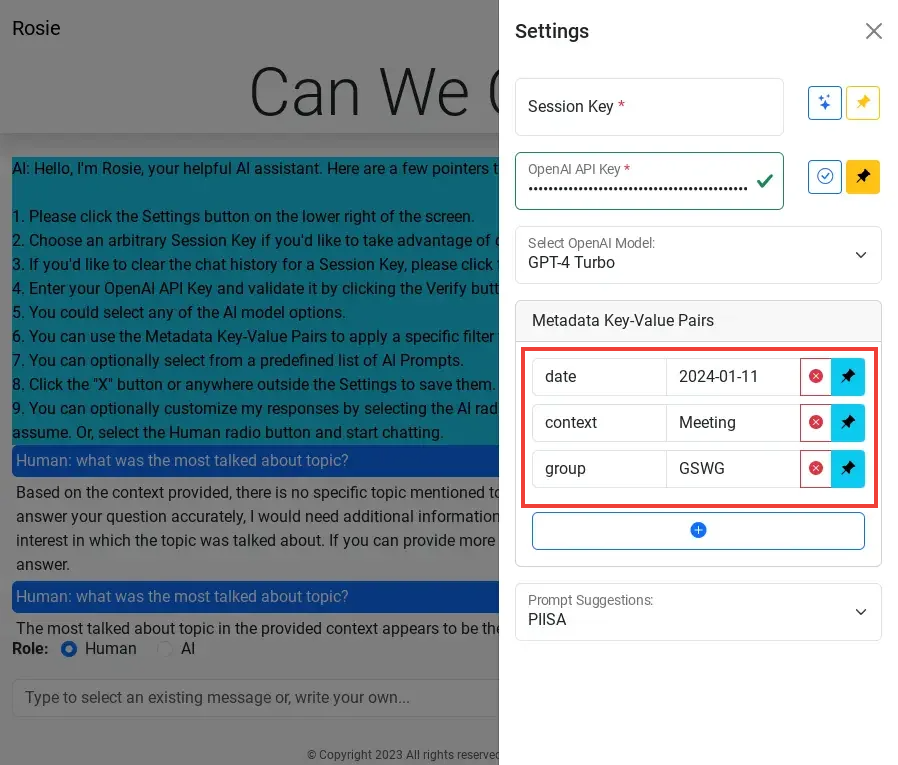
- You can now pin metadata key/value pairs to save them in your browser's local storage
- Pinned pairs will be loaded automatically so you won't have to re-enter them whenever the page loads
Changes You Should Not See
Unless you're poking around
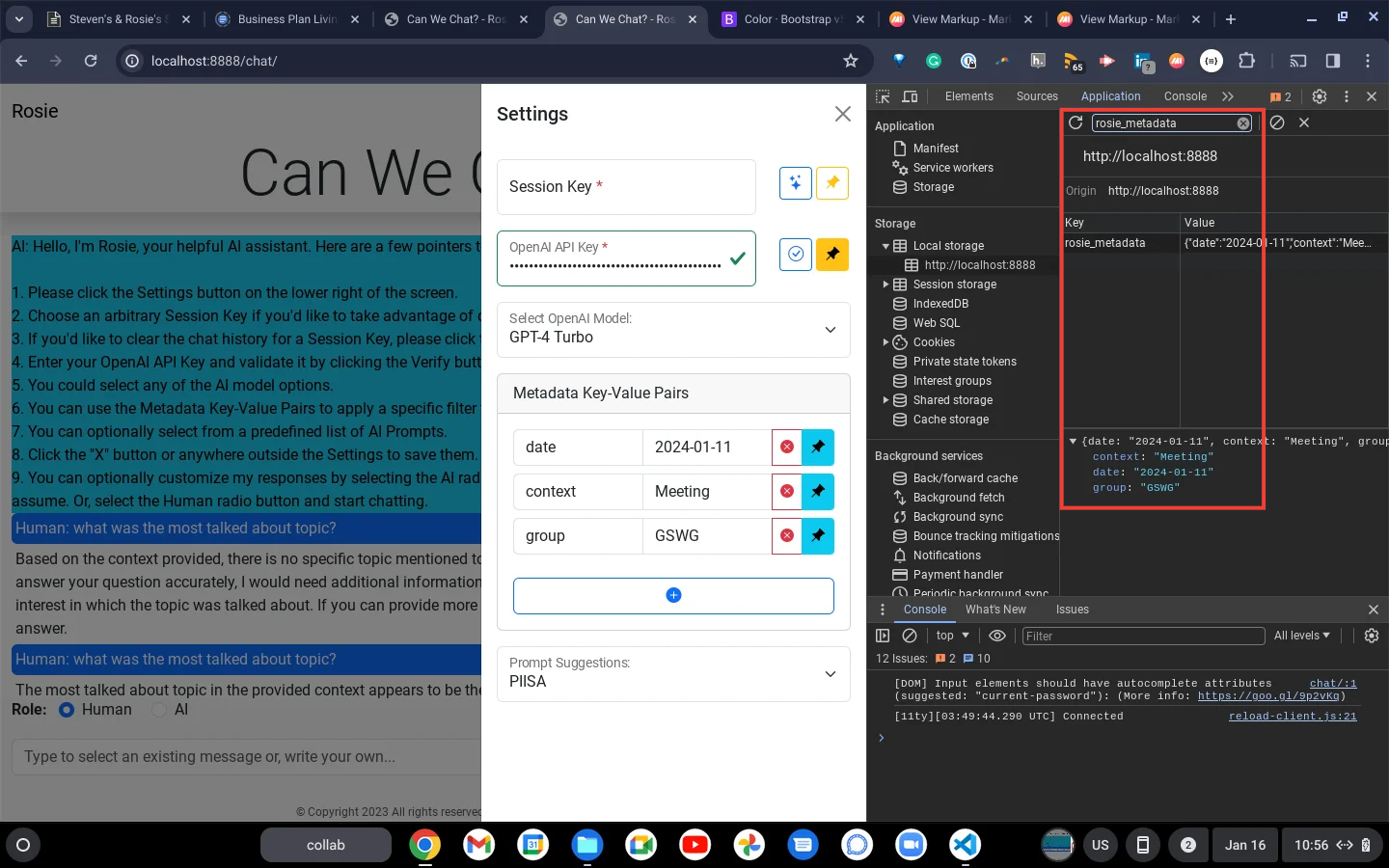
- You can see the pinned pairs in your browser's local storage key
rosie-ai-metadata
2024-01-15
Settings: Metadata Key-Value Pairs
Changes You Should See

- Fixed a bug where the Settings: Metadata Key-Value Pairs add button was reloading page.
- Fixed the Clear History bug
2023-12-31
Saving OpenAI API Key in Browser Local Storage
Changes You Should See
- Can We Chat?
- When the page loads, the Settings sidebar will open.
- You can now paste your OpenAI API Key into it's respective field and click the Pin icon.
- Pinning it will:
- Verify the key works
- Save it to the browser's local storage
- Change the adornment of the button to express the key is pinned, or the API Key is filled in.
- Now when you load the page, the key will be filled in for you.
- Site-wide
- Bug Fix: Removed duplicating login element.
Changes You Should Not See
Unless you're poking around

- If you open the Developers Tools, you'll see the OpenAI API Key is saved in the browser's local storage
- This is not a very secure way to store the key, so it's only temporary for convenience.
2023-12-30
Identity, Access Management and OpenAI API Key
Changes You Should See
- Home Page
- You will receive an email invitation to create your credentials.
- When you load the home page, you'll have to log in to access Can We Chat?".
- Can We Chat?
- When the page loads, the Settings sidebar will open to save you the extra click and bring awareness to the Session Key and primarily to the newly required OpenAI API Key.
- All the input fields and buttons now have hints when you hover over them.
- Some of the hints contain URLs. Since these typically show when you hover your mouse over their respective input fields, you can make them stick by clicking in the input field.
- OpenAI API Key is now required. Click inside the entry field, hover your mouse over it and click API keys - OpenAI API.
- Follow the instructions, ensuring you save a copy of the key.
- Paste your OpenAI API Key into the field. You'll have to repeat this process every time you load the page. Chatting does not cause the page to reload.
- Optionally, click the adjacent Verify button to ensure your key is valid.
- Monitor your Usage to ensure it's working and get a feeling for what it costs. Chatting for a few hours could cost you a couple of CAN dollars.
- Other Settings changes are cosmetic, aiming to reduce clutter.
Changes You Should Not See
- Login credentials contain metadata for their organization.
- Organizations separate data stores.
- Settings, OpenAI API Key is used to access the OpenAI API.